

Teacher guide · intermediate
Work with a course while offline
Keep recording attendance and marks when the connection drops, and see your changes sync when it returns.
5 minute read · Last reviewed
Before you start
- A course you have opened while online on this device.
Steps
1. Decide whether this device opens offline
After you sign in, LogBook asks whether to open on this device without internet. Choose Yes, this is my device only on your own device. You can change it later under Privacy & Security. It stays on for 30 days after each online visit and turns off when you sign out.
2. Keep working when the connection drops
With a course open, keep marking attendance or entering scores. Your account menu shows Offline and how many changes are saved on this device.
3. Reconnect
When the connection returns, LogBook syncs the saved changes on its own. The account menu shows Syncing, then Online with All changes synced.
4. Review anything that conflicts
If the same record changed elsewhere while you were offline, the account menu shows Needs review. Select Review changes to keep the server's version or retry your edit.
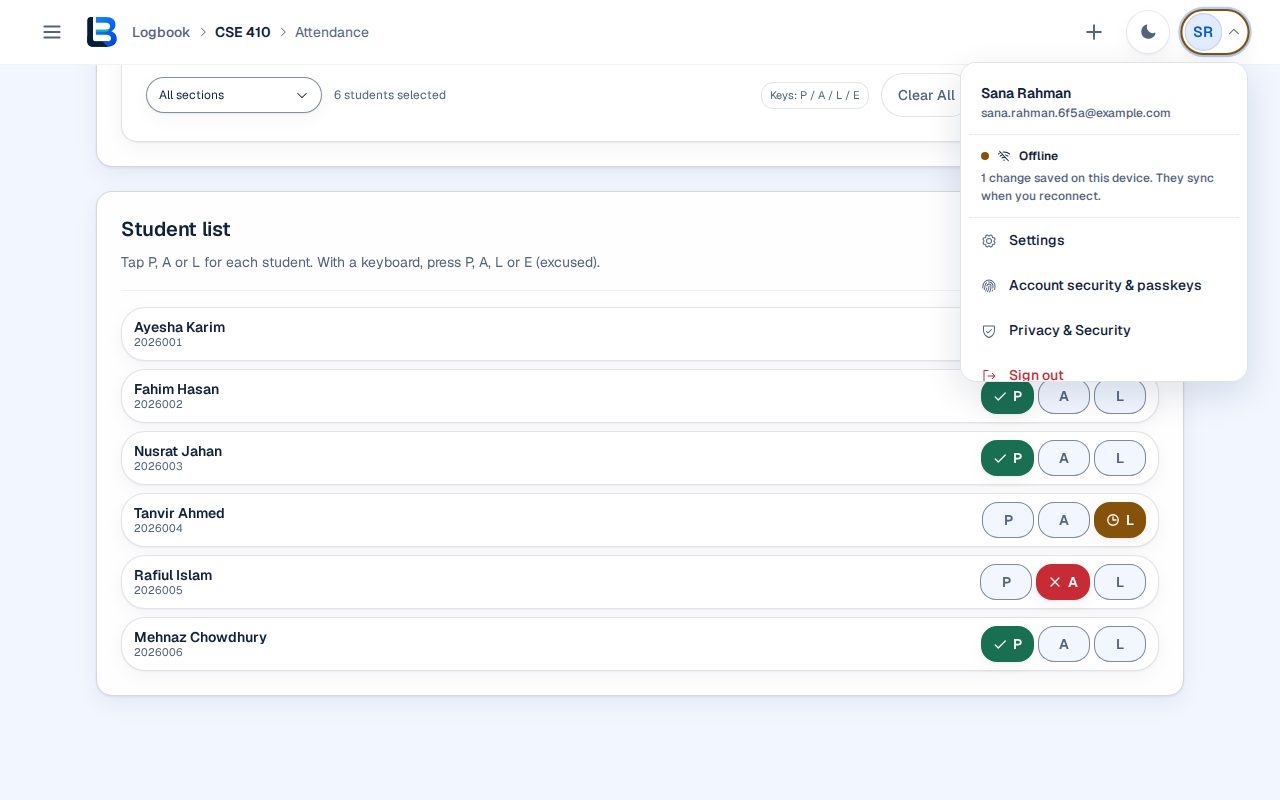
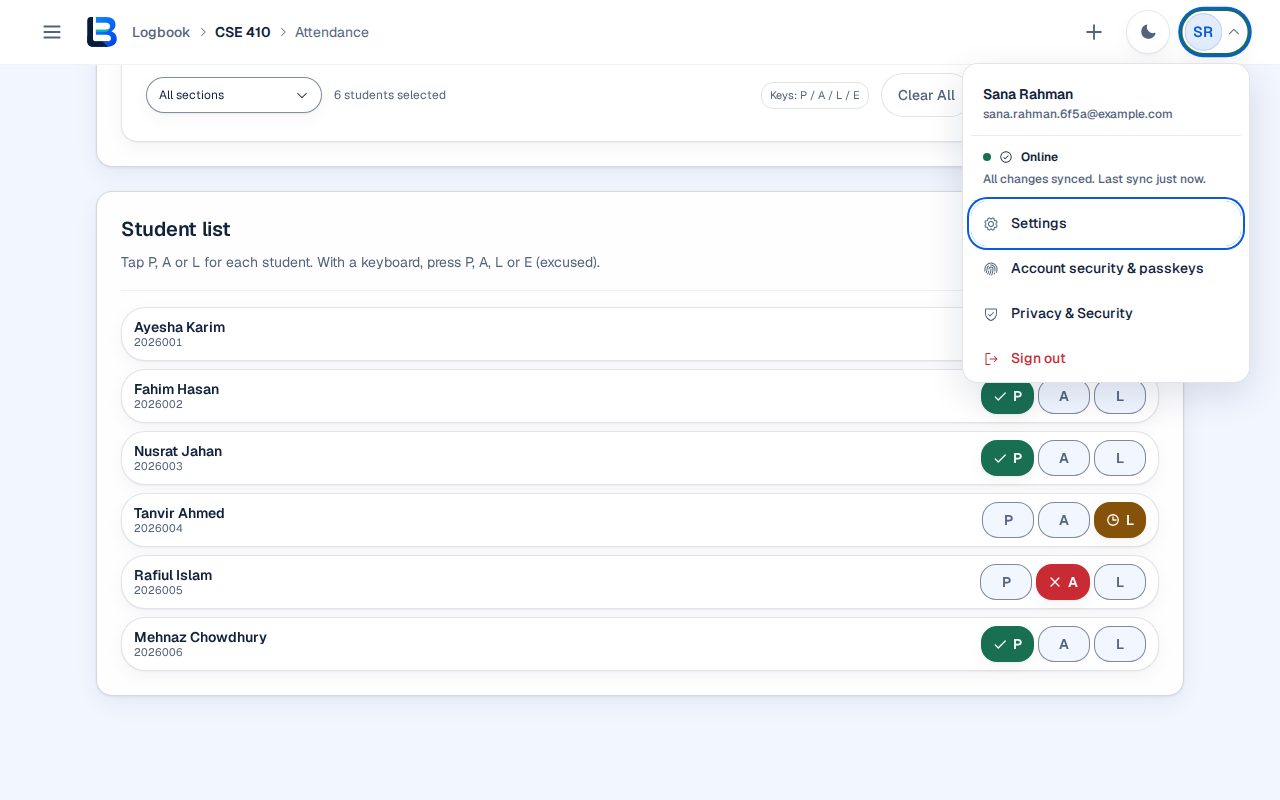
Expected outcome
Changes made offline are kept on the device and reach LogBook automatically after you reconnect.
Troubleshooting
- Sign-in, sending email or loading a course for the first time does not work offline.
- These need a connection. Open the course once while online on this device before you need it offline.
- The account menu shows Sync error.
- Use its retry action once you are online. Your saved changes stay on the device until they sync.
Related guides
This guide is based on the release recorded above. If the interface differs, stop and follow the current in-product guidance.