

Teacher guide · beginner
Track course attendance
Open today's session or a new one and mark each student present, absent, late or excused.
4 minute read · Last reviewed
Before you start
- A course with students on its roster.
Steps
1. Open attendance
Open the course Attendance tab. Choose Mark today to open today's session, or New session to set the class date, time or slot, section and group, then Create and open sheet.
2. Mark everyone at once
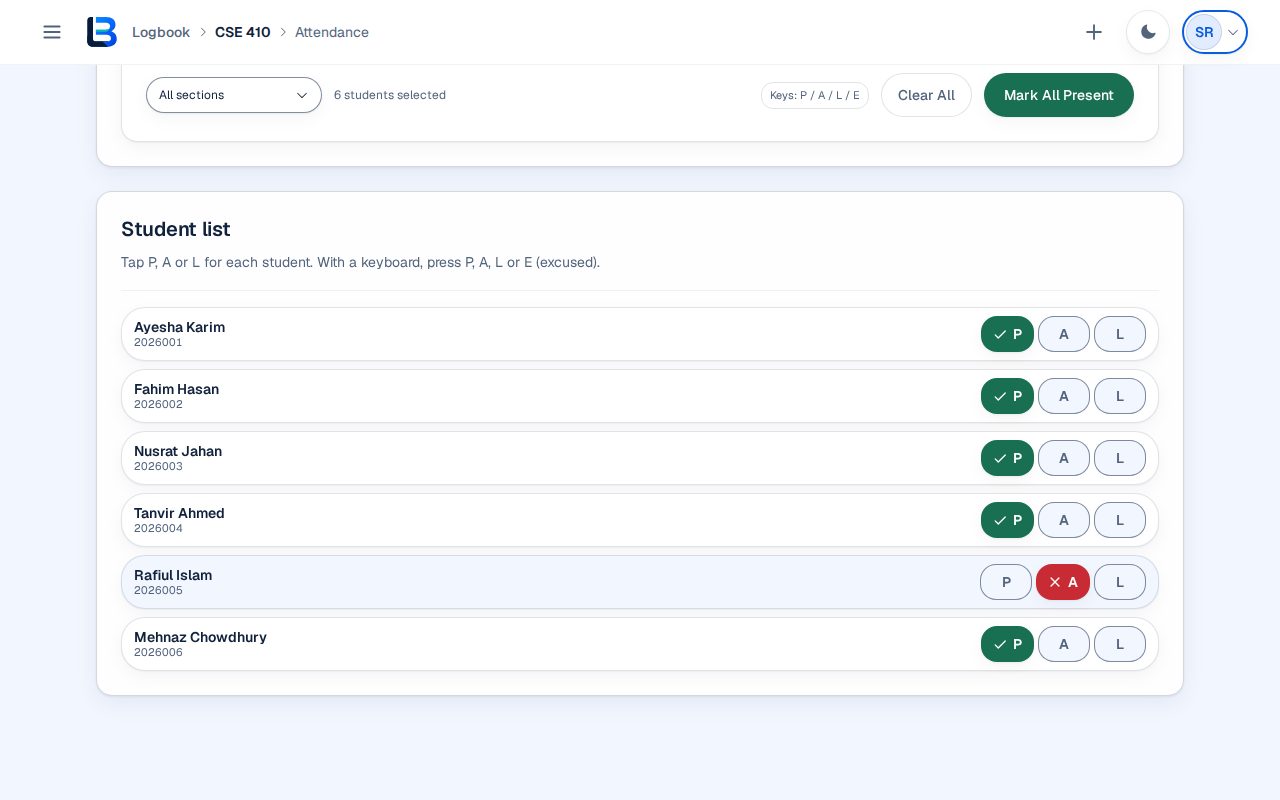
Select Mark All Present to start from a full class. If you filter by section first, the button marks only that section.
3. Change individual students
Use the P, A and L buttons on a student's row for present, absent or late. With a keyboard, focus a row and press P, A, L or E for excused.
4. Check the counts
The counts above the list update as you mark: present, absent, late, excused and unmarked. Clear All removes the marks if you need to start again.
Expected outcome
The session holds a status for every student, and the counts match what you marked.
Troubleshooting
- Mark today and New session are missing.
- Add students to the course roster first; the attendance page links to it.
- You are offline while marking.
- Keep marking; the changes are saved on this device and sync when you reconnect.
Related guides
This guide is based on the release recorded above. If the interface differs, stop and follow the current in-product guidance.