

Teacher guide · beginner
Use the gradebook
Enter scores straight into the grid and check each student's final percentage, grade and GPA.
5 minute read · Last reviewed
Before you start
- A course with students and a saved grading policy.
Steps
1. Open the gradebook
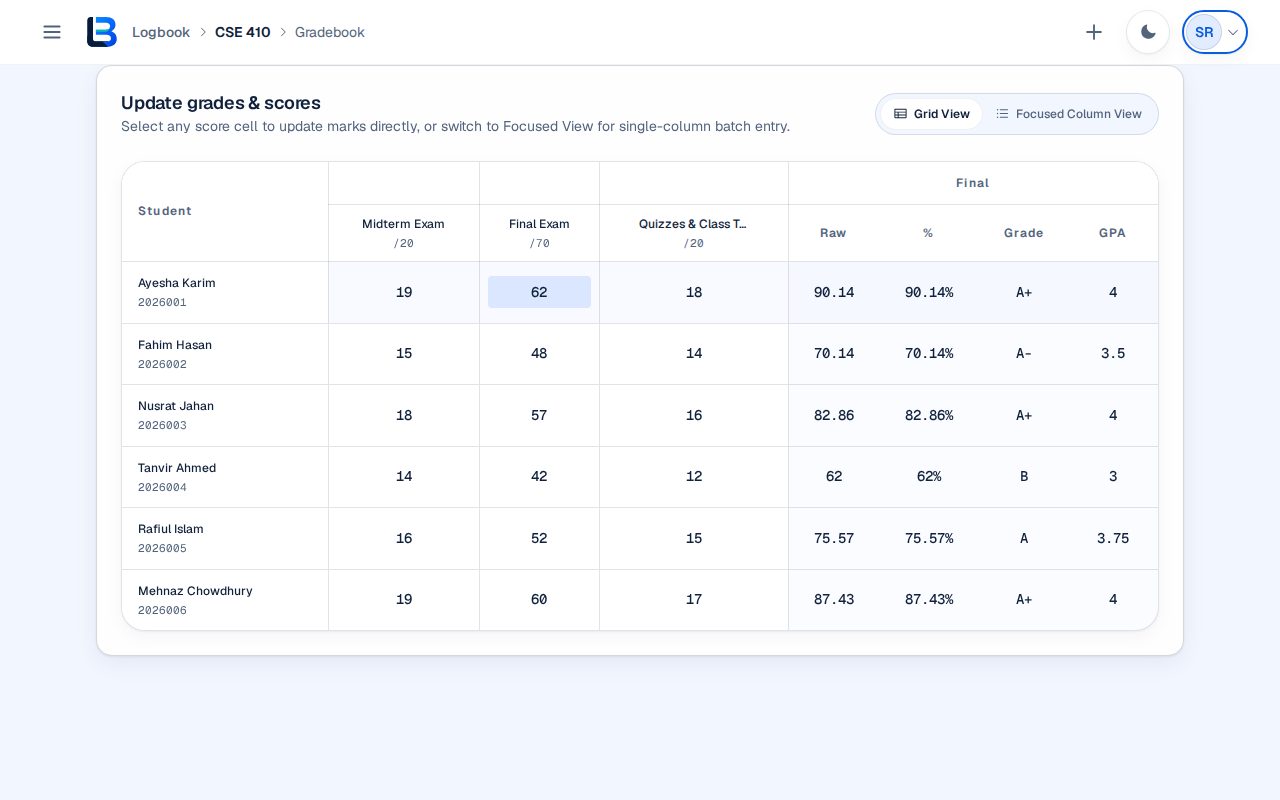
Open the course Gradebook tab. Its columns come from your grading policy, grouped by category, with each column's maximum score under its title.
2. Enter scores
Select a score cell and type the mark. Enter saves it and moves down to the next student, Tab moves right, and Escape stops editing.
3. Check the results
The Final columns show each student's raw total, percentage, letter grade and GPA as you enter marks. An empty score counts as zero. The letter grade comes from the exact percentage, and the percentage shown is cut to two decimals rather than rounded up, so it always matches the letter. Select a student's name to see their details.
4. Enter one column at a time
Switch to Focused Column View to enter a single assessment for the whole class in one list.
Expected outcome
Scores are saved, and every student's final percentage, grade and GPA follow your grading policy.
Troubleshooting
- The gradebook has no assessment columns.
- Save a grading policy first; its columns appear in the gradebook.
- A banner says some marks are not counted.
- Follow its link and add those categories to the grading policy.
Related guides
This guide is based on the release recorded above. If the interface differs, stop and follow the current in-product guidance.