

Teacher guide · intermediate
Design a grading scheme
Start from a template or from scratch, set category weights and grade bands, and save the policy that drives the gradebook.
6 minute read · Last reviewed
Before you start
- A course workspace.
Steps
1. Open the Grading Scheme tab
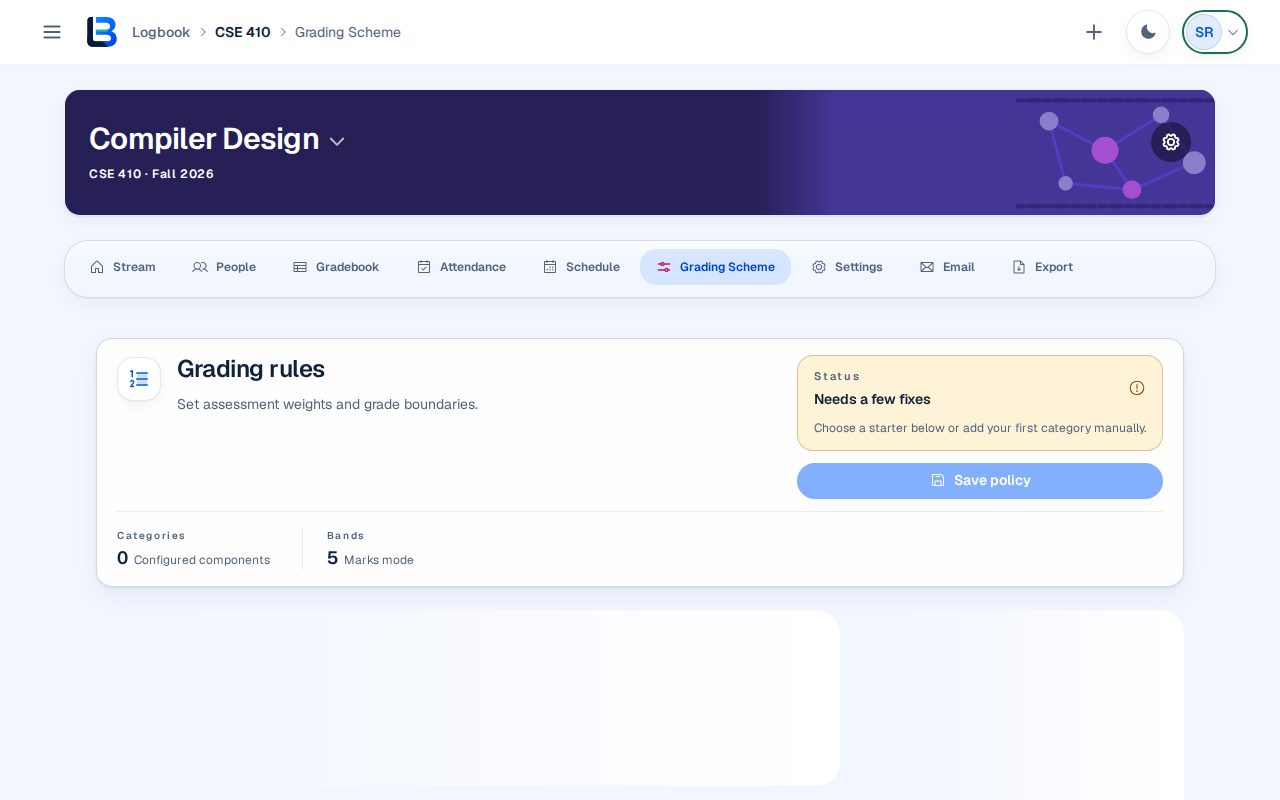
Open the course and choose Grading Scheme. A new course offers starter templates grouped as Lecture & Theory, Laboratory & Practical, and Project & Research, or Start from scratch.
2. Pick the closest starting point
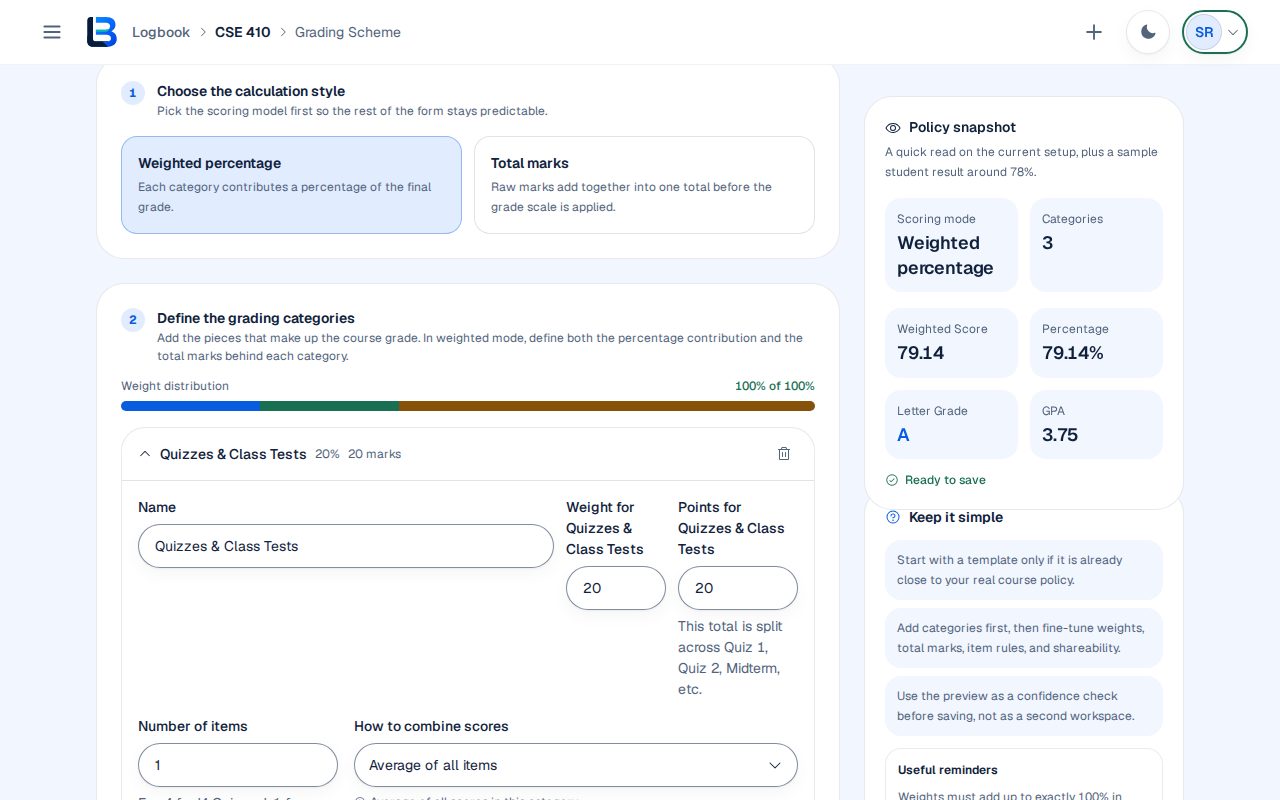
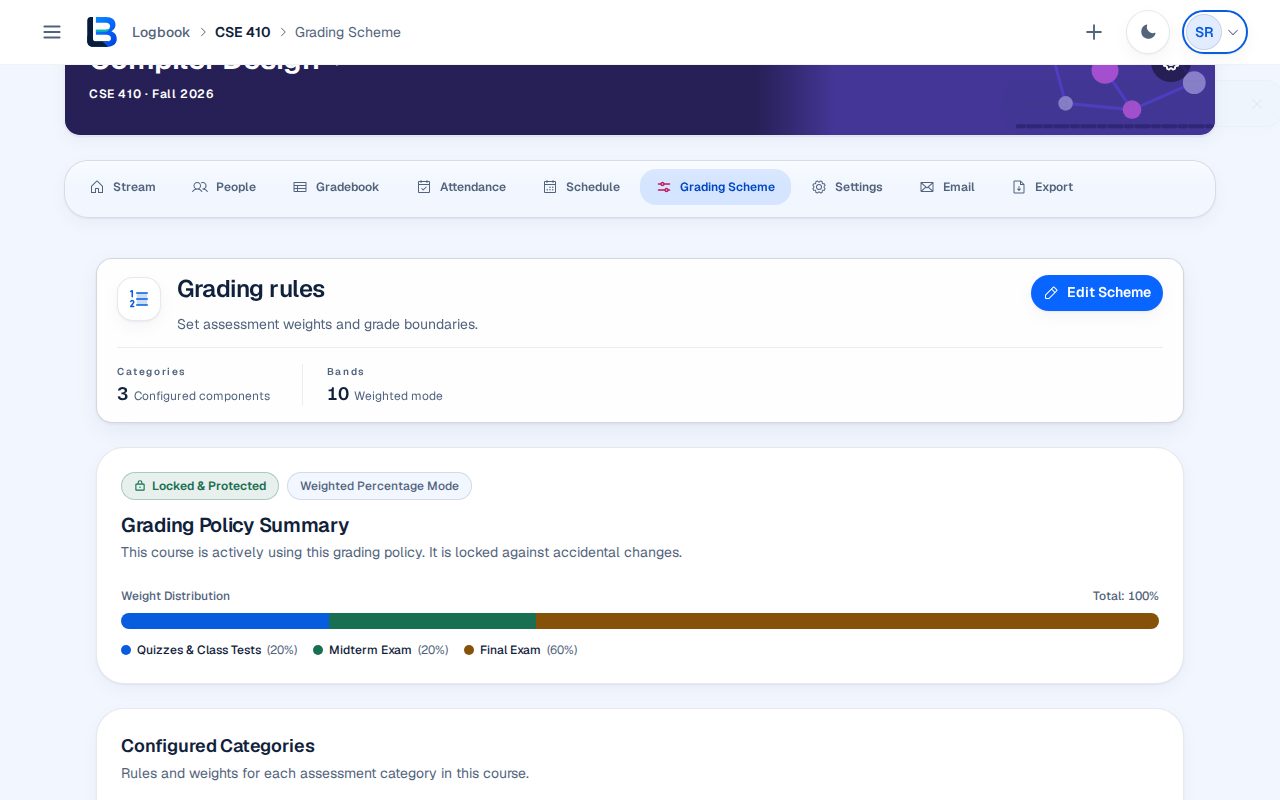
Choose a template only if it is close to your real course policy, for example Standard Theory, which sets Quizzes & Class Tests at 20%, Midterm Exam at 20% and Final Exam at 60%. Everything it fills in can be changed.
3. Set the calculation style and categories
Choose Weighted percentage or Total marks. For each category, set its name, weight or marks, the number of items, and how scores combine. Under How to combine scores, the editor explains how that choice turns item scores into the category's marks, using the category's own numbers. In weighted mode the weights must add up to exactly 100%.
4. Set the grade scale
Map final percentages to letter grades and GPA points, or load a preset scale and adjust its cutoffs. The Policy snapshot beside the editor shows a sample result as a percentage, letter grade and GPA, and the status card shows whether the policy is ready to save.
5. Add pass rules if your course has them
Under Pass rules (optional), choose + Add pass rule, pick a category and the minimum percentage a student needs in it, for example 40% in the Final Exam. A student who misses any rule gets the grade and GPA you set under Grade when a rule is not met, whatever their total. Leave this empty if your course has no such rule.
6. Save the policy
Select Save policy. LogBook saves the policy, creates the matching gradebook columns and shows the Grading Policy Summary, locked against accidental changes. Use Edit Scheme to change it later.
Expected outcome
The course has a saved grading policy, and the gradebook has a column for each assessment it defines.
Troubleshooting
- Save policy is disabled.
- Read the status card and the message under it. In weighted mode, adjust category weights until they total exactly 100%.
- The gradebook lists marks that are not counted.
- Add those categories to the grading policy so their marks count toward the final grade.
Related guides
This guide is based on the release recorded above. If the interface differs, stop and follow the current in-product guidance.