

Teacher guide · beginner
Preview and export course records
Download ready-made spreadsheets, build a custom report, or export results in your university's own format, with a live preview before you export.
5 minute read · Last reviewed
Before you start
- A course with students and scores; final grades also need a saved grading policy.
Steps
1. Open exports
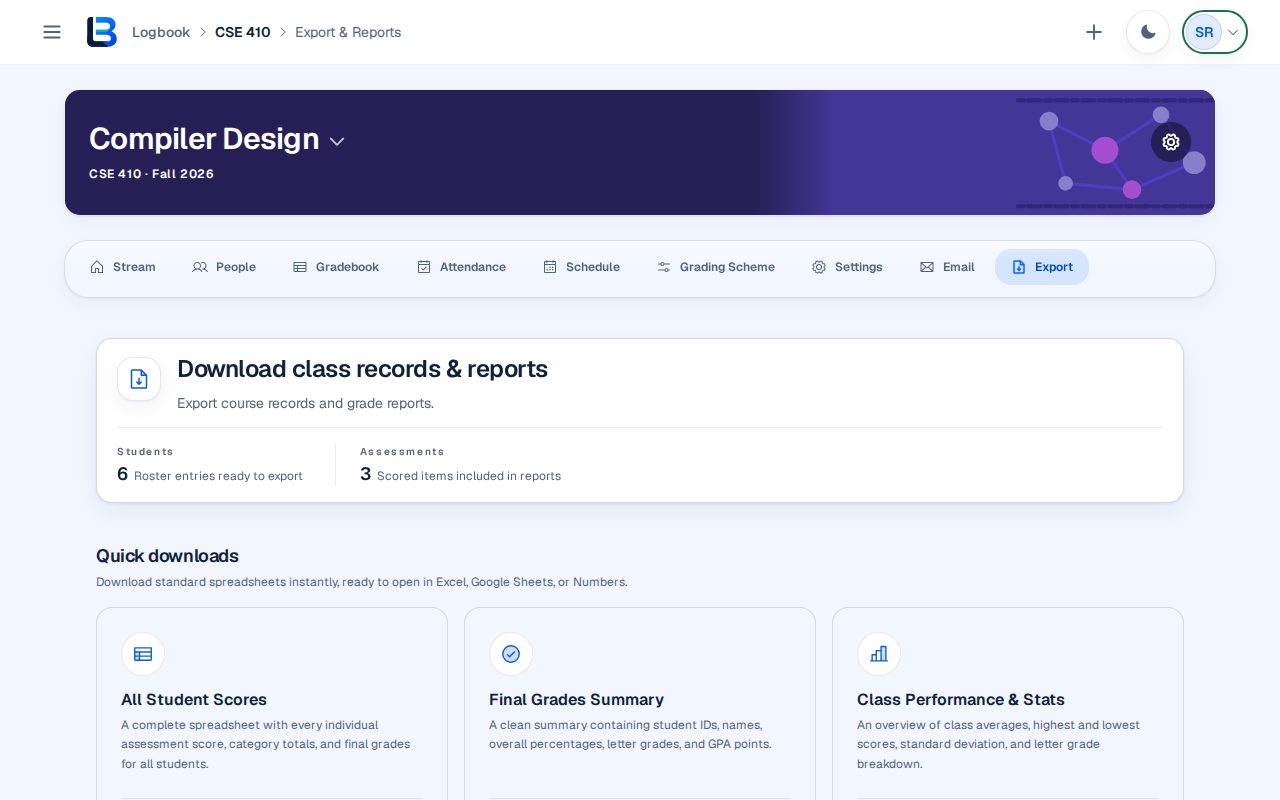
Open the course Export tab. Download class records & reports shows how many students and assessments will be included.
2. Use a quick download
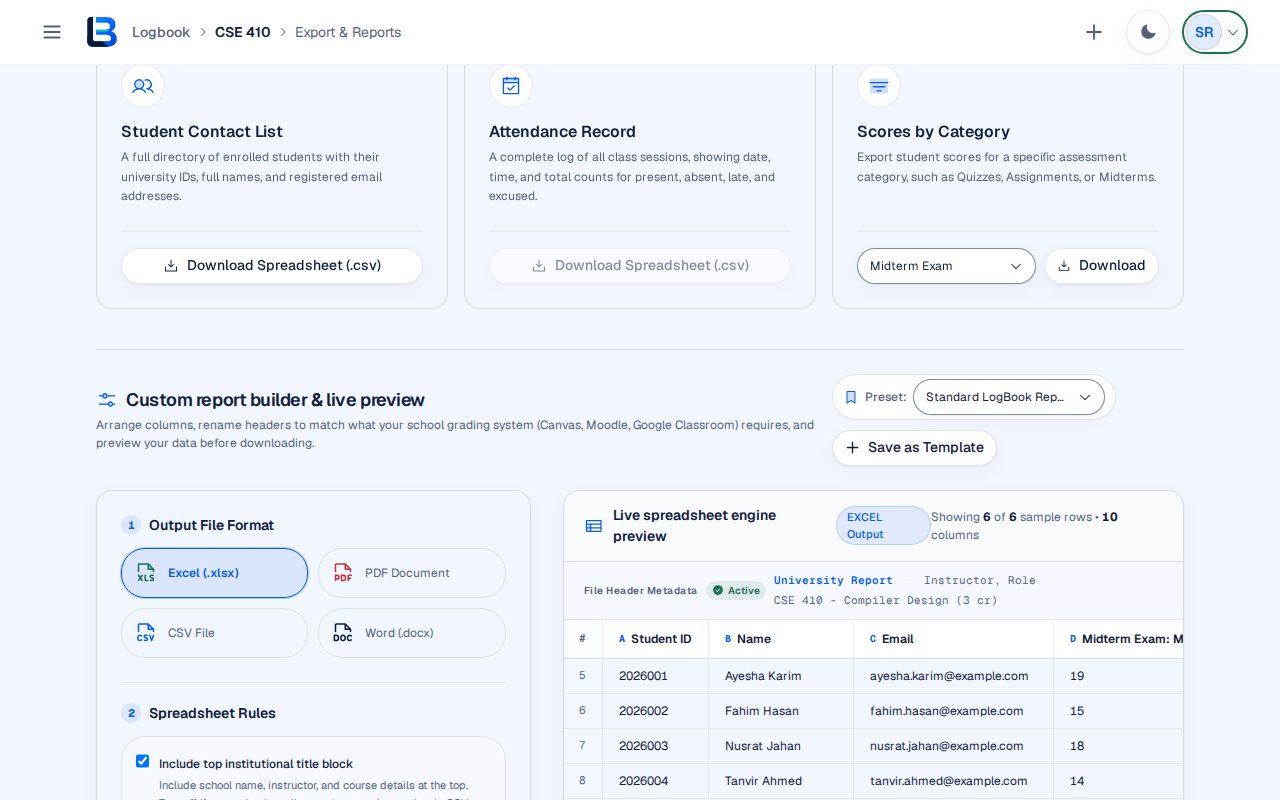
Quick downloads offers All Student Scores, Final Grades Summary, Class Performance & Stats, Student Contact List, Attendance Record and Scores by Category. Select Download Spreadsheet (.csv) on the one you need; the file opens in Excel, Google Sheets or Numbers.
3. Build a custom report
In the custom report builder, pick a preset: a built-in layout, one of yours, or one a colleague shared with your department. Choose an output format (Excel, PDF document, CSV file or Word), decide how empty scores appear, and include, reorder or rename columns. Add your institution and course details for the report's title block if you want one.
4. Export in your university's format
Under University Format, choose Set up and enter the components your university asks for with their marks, for example CT 30, Attendance 10, Mid 20 and Final 40, then its rounding, grade scale and any pass rules. Tick which of this course's categories make up each component and choose Save mapping to this course. The university columns appear in the preview. The total is the sum of the components as printed, and the letter grade comes from that printed total, so every row adds up.
5. Check the preview, then download
The live spreadsheet preview shows the columns and rows exactly as they will be exported. When it looks right, select Generate & Download Report. Choose Save as Template to keep the layout in your account, tick Share this format with my department so colleagues can use it, or use Format file and Import to share it with anyone.
Expected outcome
You have a file containing exactly the course records you chose, in the format you chose.
Troubleshooting
- Final Grades Summary is disabled.
- Save a grading policy for the course first.
- Attendance Record is disabled.
- Record at least one attendance session first.
- The preview has columns you do not need.
- Untick them in the column list before generating the report.
- Generate & Download Report is disabled after setting up a university format.
- A university component has no course category ticked, or the format has a problem listed under University Format. Fix it there.
- A banner says layouts are saved only in this browser.
- Choose Move to my account if the layouts are yours. On a shared computer, choose Not mine - discard.
Related guides
This guide is based on the release recorded above. If the interface differs, stop and follow the current in-product guidance.