

Teacher guide · intermediate
Configure advanced grading rules
Keep the best scores, drop the lowest, turn attendance into marks or grade against a rubric.
6 minute read · Last reviewed
Before you start
- A course with a grading policy you are editing.
Steps
1. Choose how a category combines scores
In the grading rules editor, open a category and set How to combine scores: Sum of all items, Average of all items, Keep Best N items, Drop lowest items, Calculated from attendance records, Attendance to marks, or Rubric-based.
2. Keep the best or drop the lowest
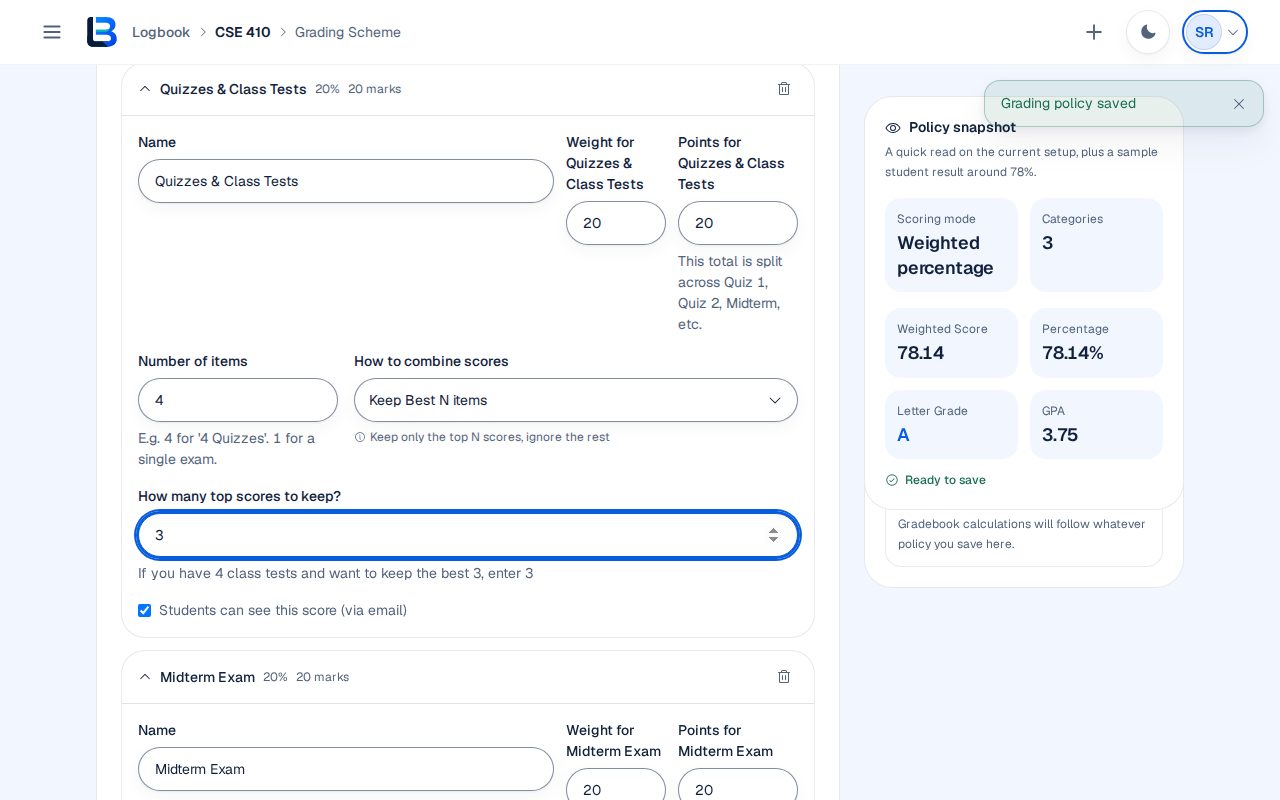
For Keep Best N items, set the number of items and how many top scores to keep, for example the best 3 of 4 class tests. For Drop lowest items, enter how many of the lowest scores to drop.
3. Turn attendance into marks
For attendance-based categories, choose the conversion method and the maximum marks for full attendance. The marks follow the attendance you record for the course. Choose how a late arrival and an excused absence count: Attended, Missed, or Left out of the total.
4. Grade against a rubric
For Rubric-based, add the criteria you score against, such as procedure, accuracy and report. If an item is scored across several sessions, choose whether to average, add up or keep the best sessions.
5. Check before saving
Watch the status card and the Policy snapshot, which shows how a sample result turns into a percentage, letter grade and GPA, then select Save policy.
Expected outcome
The course grading policy uses the rule you chose, and the gradebook applies it to every student.
Troubleshooting
- A rule needs data the course does not have yet.
- Record attendance or enter the rubric scores that the rule depends on; the results update as data arrives.
- Save policy stays disabled after changing a rule.
- Fill in the rule's extra setting, such as how many scores to keep or drop.
Related guides
This guide is based on the release recorded above. If the interface differs, stop and follow the current in-product guidance.