

Teacher guide · intermediate
Preview and send a personalized course email
Compose a course email with each student's own marks, preview it for every recipient and send it from LogBook.
6 minute read · Last reviewed
Before you start
- A course with students who have email addresses, and a saved grading policy to share grades.
Steps
1. Open course email
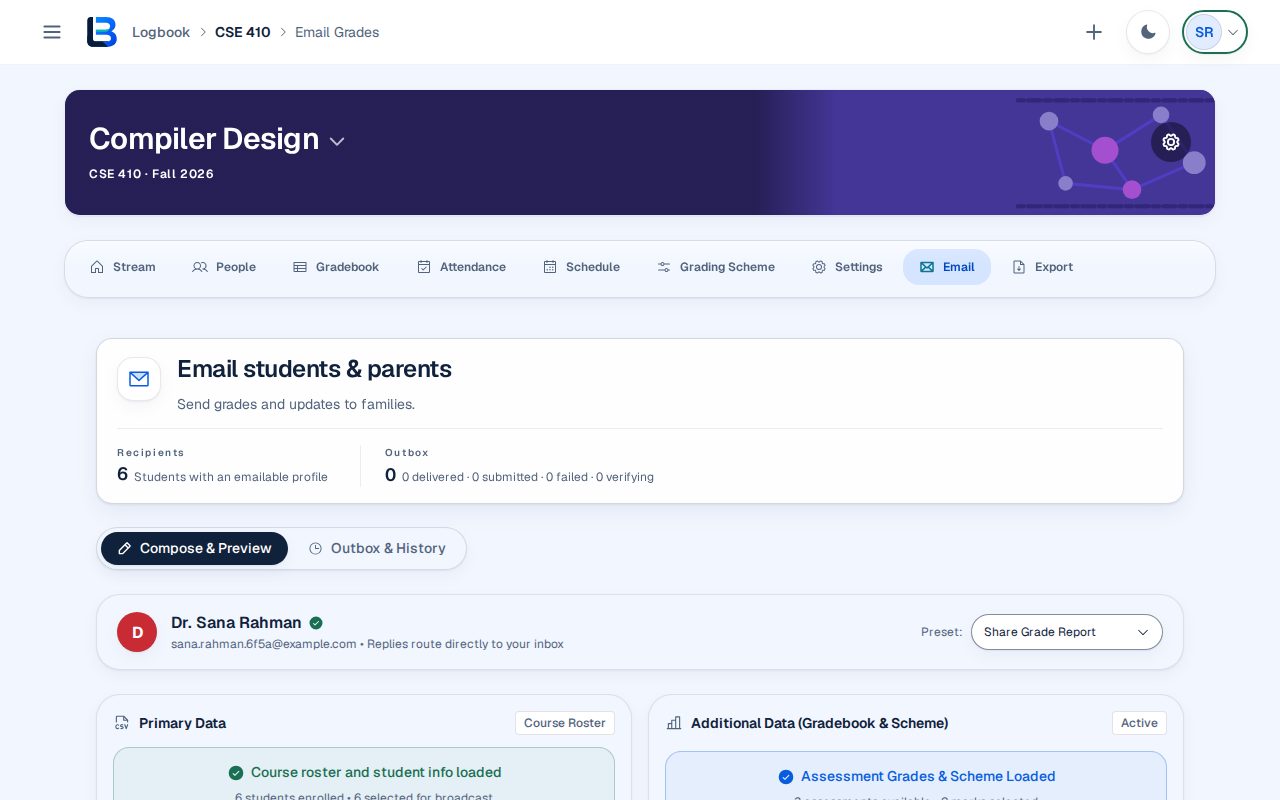
Open the course Email tab, or select Share grade in the gradebook. Choose a preset: Share Grade Report, Attendance Alert, Course Announcement or Custom Message. Replies go straight to your own inbox.
2. Choose recipients and write the message
Under Target Recipients choose All or Custom. Edit the subject line and message body, and select a variable tag to insert a personal value such as the student's name or marks. For grade reports, choose which assessment marks are included.
3. Preview each recipient
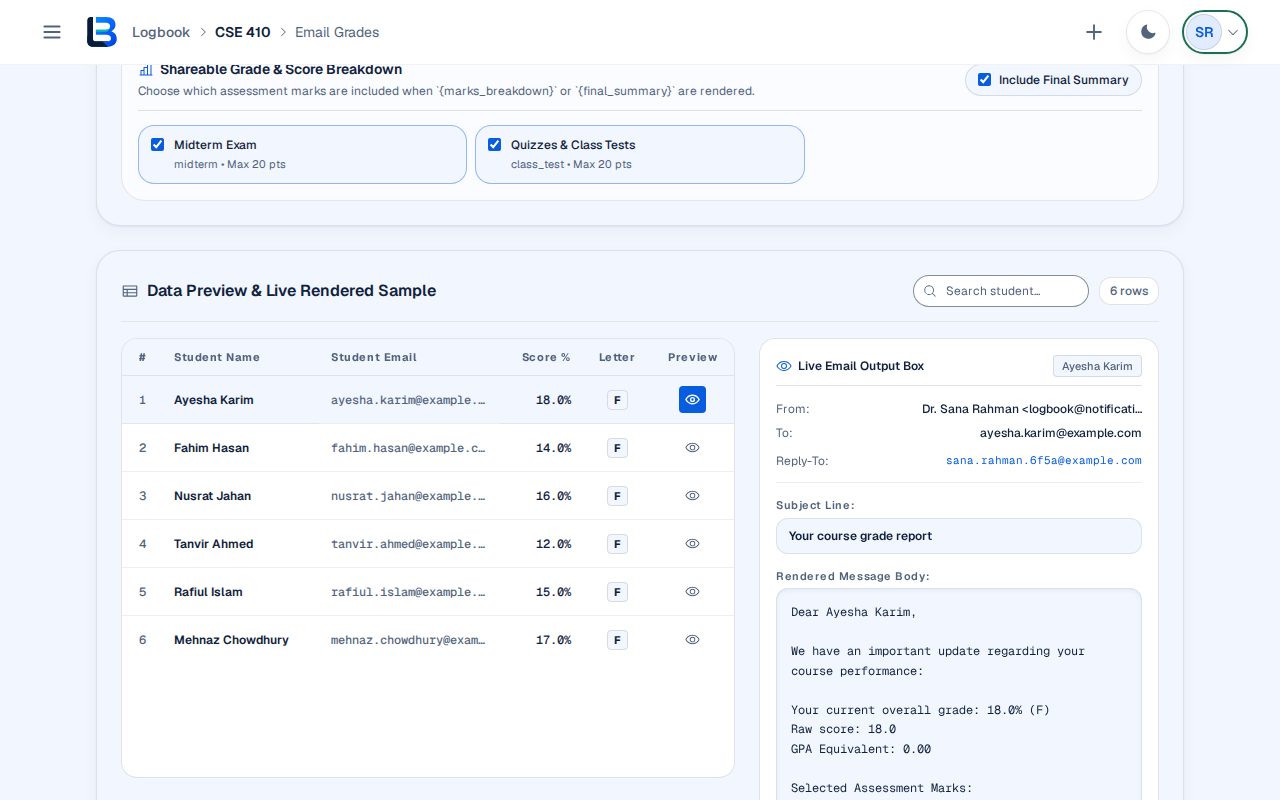
The Data Preview & Live Rendered Sample table lists each student's email, score and letter. Select the eye icon on a row to see the exact message that student will receive, including the From, To and Reply-To lines. Students who unsubscribed from this course's email through the link in a previous message are left out automatically, and the recipient picker shows how many.
4. Send
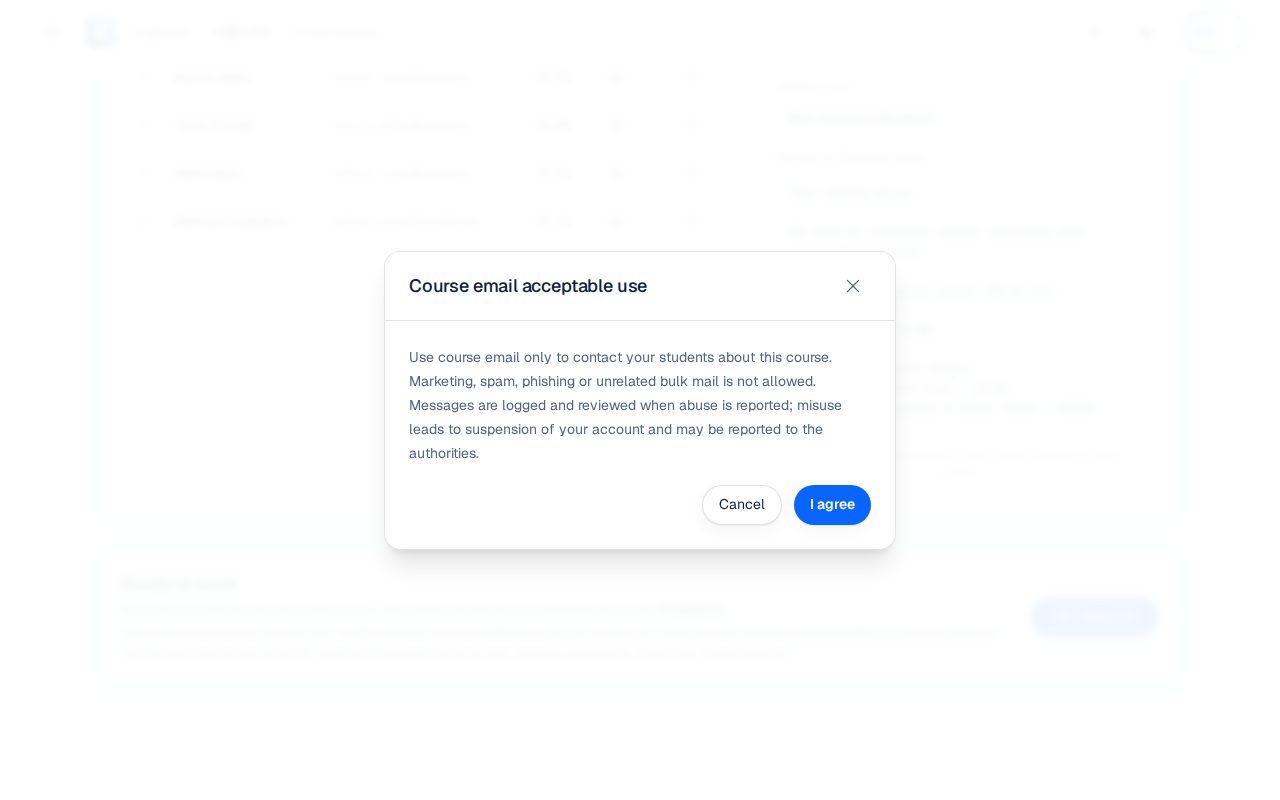
Select Send. The first time, read and accept the course email acceptable use terms. LogBook queues one message per student and opens Outbox & History, where each delivery's status appears.
Expected outcome
Each selected student receives a message with only their own details, and the history shows its delivery status.
Troubleshooting
- A personalization field is blank or incorrect.
- Check that student's marks in the gradebook or remove the field, then preview the recipients again.
- Send is disabled.
- Enter a subject and message, choose at least one recipient and one grade detail to share, and save a grading policy if the preset needs one.
- The recipient list fails to load.
- Treat a request error separately from an empty list. Check the connection and retry; do not send while recipient eligibility is unknown.
- The loaded recipient list is empty.
- Check the selected group and filters, then review the unsubscribed count before changing the audience.
- Email history fails to load.
- Show the history error and retry; do not present a failed history request as an empty send history.
- A student is missing from the recipient list.
- Check the unsubscribed count in the recipient picker. A student who unsubscribed can opt back in with Undo on the same unsubscribe link; LogBook does not resubscribe them for you.
Related guides
This guide is based on the release recorded above. If the interface differs, stop and follow the current in-product guidance.