

Teacher guide · beginner
Create and verify a teacher account
Create your LogBook account, confirm your email and save your teacher profile.
4 minute read · Last reviewed
Before you start
- An email address you can open now.
Steps
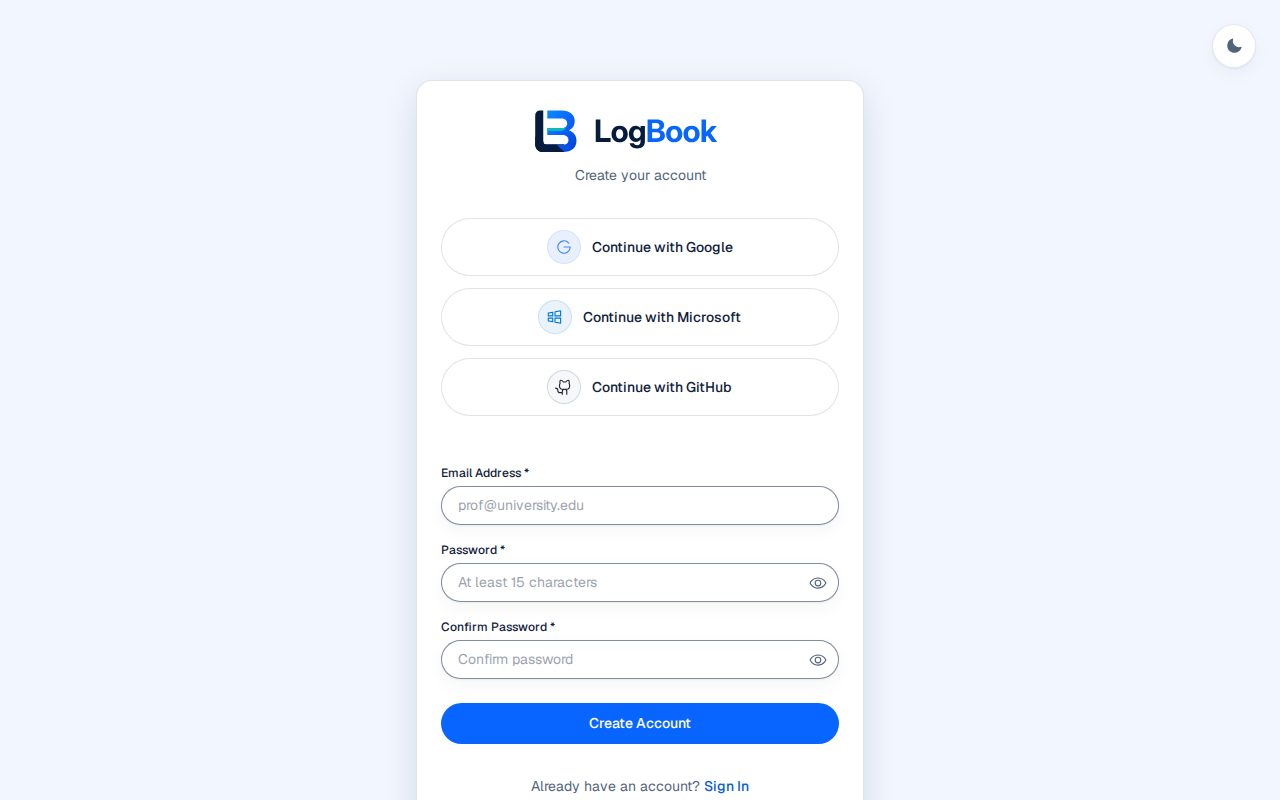
1. Open sign-up
Open the LogBook sign-up page. Use one of the sign-in options shown above the form, or enter your email address and a password that meets the rules shown, confirm it, and select Create Account.
2. Confirm your email
LogBook emails you a verification code. Enter the latest code on the verification page and select Verify and continue. If it has not arrived, check spam, then use Resend Verification Email. Accounts created with Google, GitHub or Microsoft arrive with the email already confirmed.
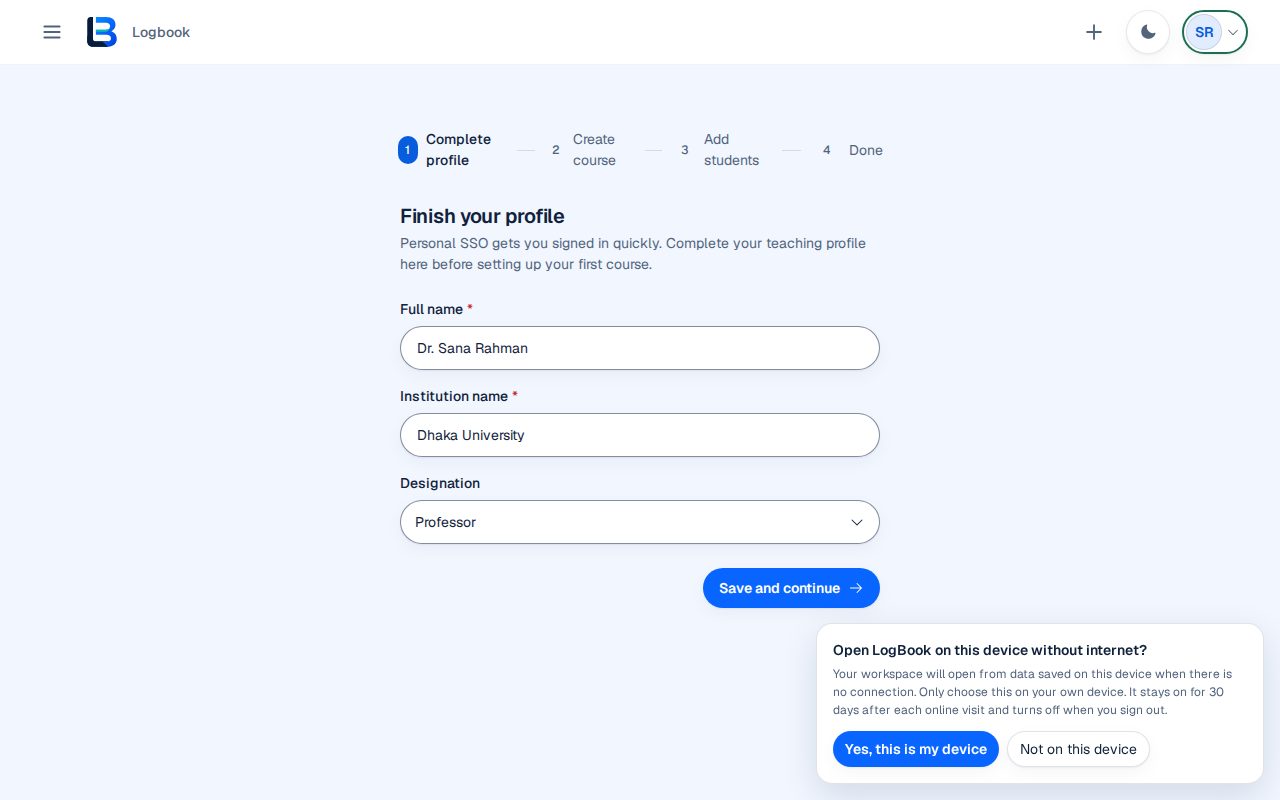
3. Finish your profile
Enter your full name, institution name and designation, then select Save and continue. LogBook then walks you through creating your first course. It also asks once whether this device may open LogBook without internet; choose Yes only on your own device.
Expected outcome
Your account is verified, your profile is saved and LogBook opens the first-course setup.
Troubleshooting
- The verification email does not arrive.
- Check spam and promotions folders, then use Resend Verification Email and enter only the newest code.
- A short security check appears.
- Complete it; it protects sign-up from automated accounts, then sign-up continues.
Related guides
This guide is based on the release recorded above. If the interface differs, stop and follow the current in-product guidance.